Camera counting

Camera rep counter: how your iPhone counts push-ups, squats and pull-ups

When you train alone, counting reps takes your attention away from the movement, and when you are tired the number is easy to lose. MISSION: Unbreakable counts push-ups, squats, pull-ups, dips and sit-ups with the iPhone camera. This guide explains how camera counting works, where to place the phone for each movement, why a rep sometimes does not count and what happens to the camera picture. At the end you will find how to count by hand when you would rather not use the camera.

Written by Aleksi Kiltala, Kiltala Oy · Updated 29 November 2026

Short answer

MISSION: Unbreakable finds the joints of your body in the camera picture with Apple Vision body pose detection and follows how high and how low your shoulders or hips move. A rep counts only when the movement reaches the bottom position and returns to the start. Lean the phone against something on the floor so that the limbs being counted are in the picture: arms and shoulders for push-ups, your whole body down to the ankles for squats, and your body from the side for sit-ups. The picture is processed on the phone and is never saved or sent. If you would rather not use the camera, you enter the reps yourself with + and −.

MISSION: UnbreakableiPhone · iPhone Duo
The basics

How the camera counts reps

The counter does not watch a video the way a person does. It follows a few joint points and the distances between them.

When a set starts, the app passes the camera picture to body pose detection in Apple's Vision framework. It looks for the joints of a person in every frame, such as shoulders, elbows, wrists, hips, knees and ankles, and reports how confident it is about each point. Detection runs on the iPhone and needs no network connection.

Points alone are not reps. For push-ups the counter measures how high the shoulder is above the wrist, and for squats how high the hip is above the ankle. The height is compared with your own starting position, so your height and the width of your hands do not change the result. The elbow angle is not used, because seen from the front it depends on whether your elbows point out to the sides or back. For sit-ups the app measures how upright your upper body gets.

Each rep has two limits. The movement has to go below the lower limit and come back above the upper limit before the number goes up. The gap between the limits stops one rep from being counted twice when the movement pauses near a limit. First the counter wants to see the starting position: the set starts by itself once you have held the position for about a second, and a rep that starts from the bottom does not count.

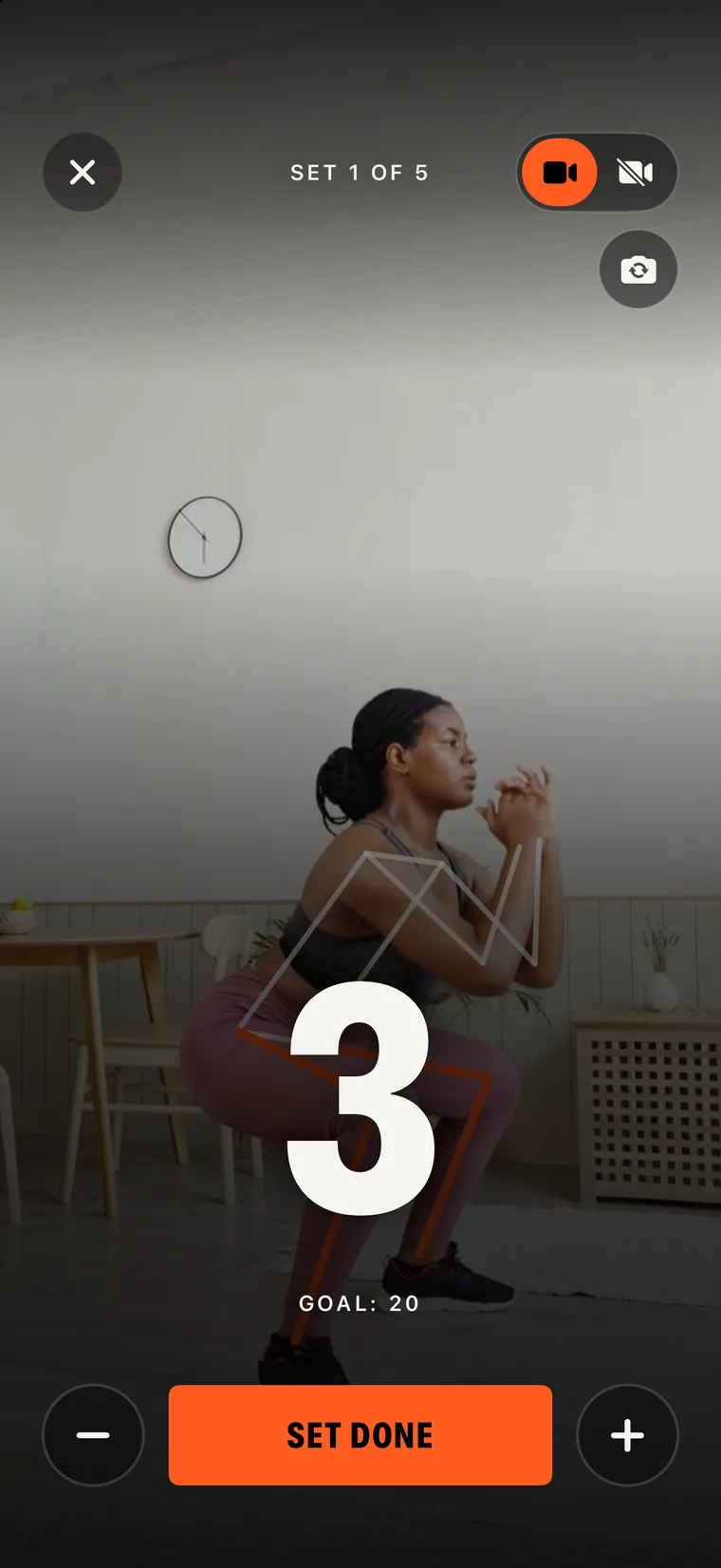
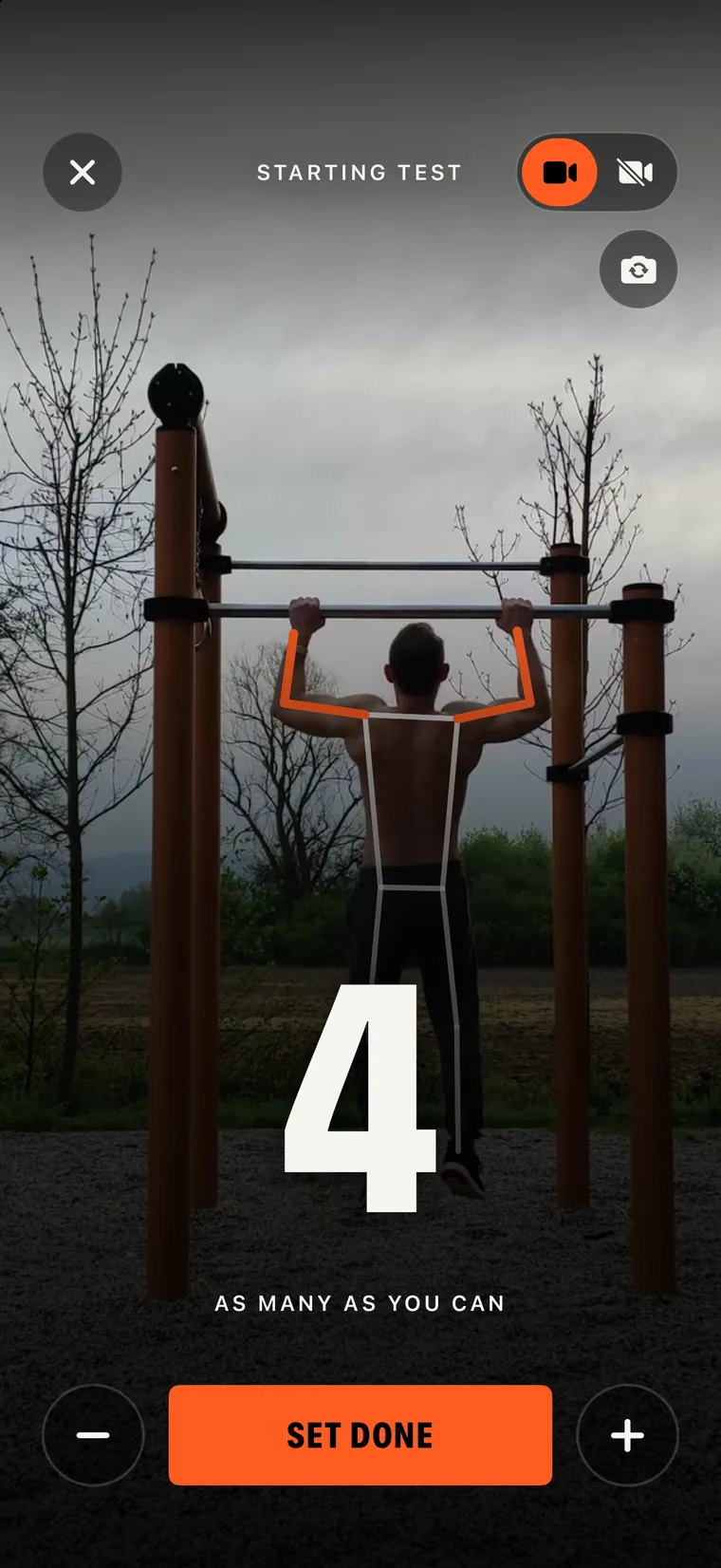
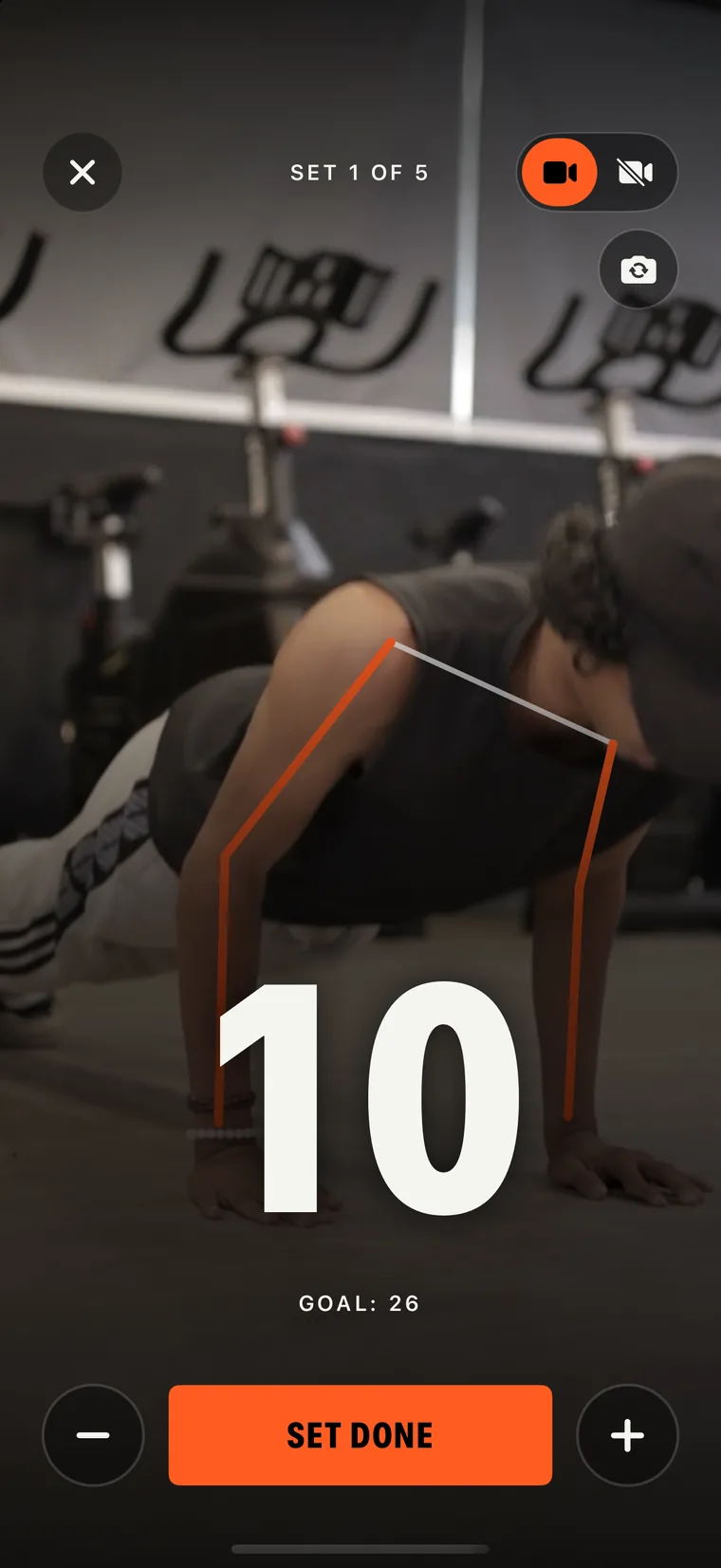
Lines are drawn over the limbs the counter follows, and the count shows as a large number. If there are several people in the picture, the app picks the one who fills most of the frame and stays with them. If the limbs leave the picture for more than a second, the unfinished rep is forgotten, so movement the camera could not see never becomes a rep.

A push-up on a gym floor: orange lines follow the arms, the counter shows 10 and the goal is 26
Push-up
A squat at home: lines follow the legs and body, the counter shows 3 and the goal is 20
Squat
A pull-up on an outdoor bar filmed from behind: lines follow the arms and body, the counter shows 4
Pull-up from behind
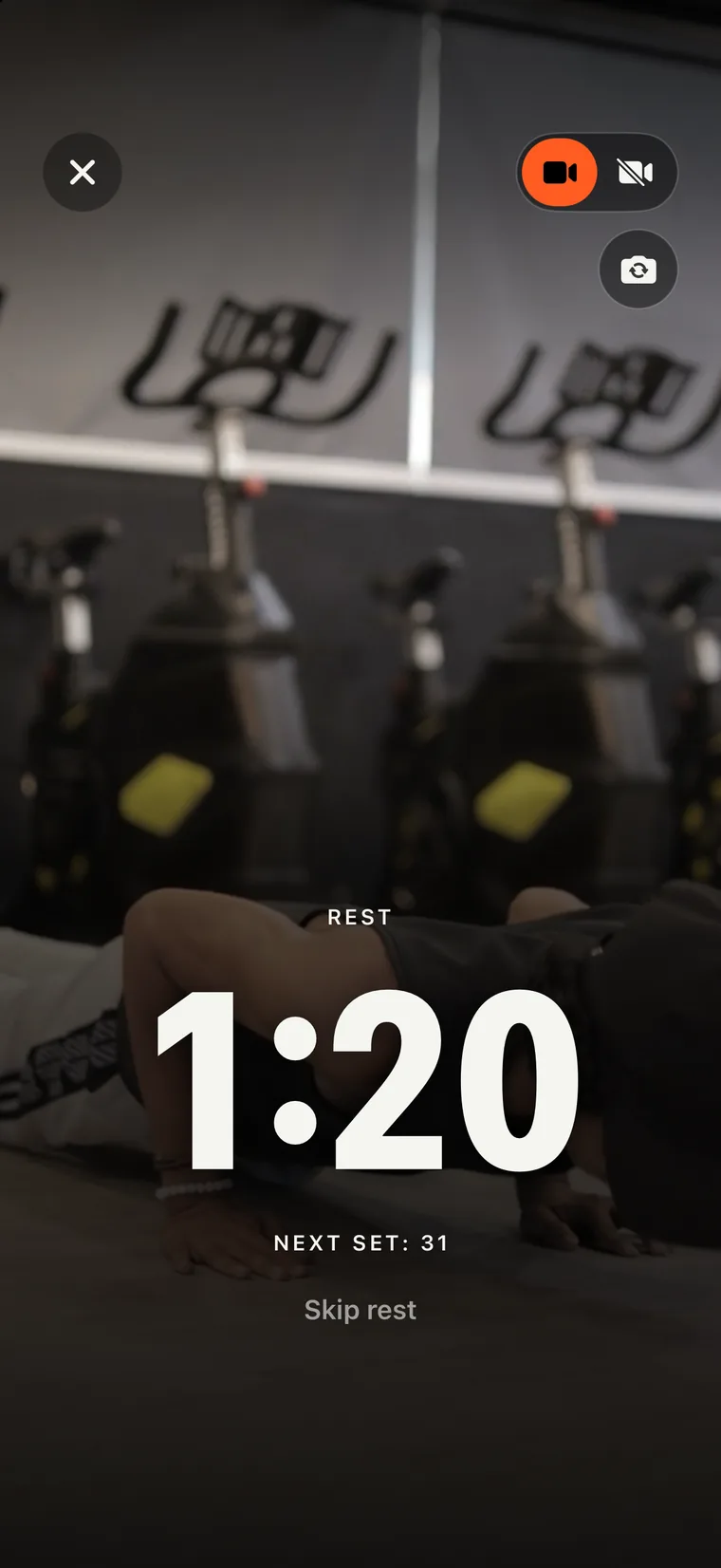
Rest between sets: the clock shows 1:20 and the next set is 31
Rest between sets

What counts as a full rep

The app counts full reps only. The table shows the bottom and top position of each movement, what the camera follows and the directions the counting was checked from in the test videos.

MovementFull repWhat the camera followsCamera angle
Push-upFrom straight arms down until your upper arms are about level, then back to straight arms. Hands stay on the floor.Shoulder height above the wristSide, front or diagonal
SquatFrom standing down until your thighs are nearly level, then back up.Hip height above the ankle, read from both legsSide, front or diagonal
Pull-upFrom a straight-arm hang up until your chin is over the bar, then back to straight arms.Shoulder height below the wrists on the barFront, back or diagonal
DipFrom straight arms down until your upper arms are level or lower, then back to straight arms.Shoulder height above the hands on the barsFront or front diagonal
Sit-upFrom lying on your back with knees bent up to sitting, until your upper body is clearly upright.Tilt of the upper bodySide only
PlankA hold on your forearms.Not followed by the camera; the app clock times itDoes not matter
Setup

Where to place the phone

The general rule: phone on the floor, leaning against a wall, a shoe or a water bottle, far enough away that the counted limbs stay in the picture through the whole movement. These are the same instructions the app shows before a set.

  • Push-upPlace the phone on the floor, leaning against something, and get into push-up position with your arms and shoulders in the picture. The phone can be in front of you, at your side or at an angle. Your wrists must be visible: if the phone is right in front of your head and your hands are out of the picture, counting does not work.
  • SquatPlace the phone on the floor, leaning against something, and step back until your whole body is in the picture, down to the ankles. The phone can be in front, at the side or at an angle. Your ankles and head should stay in the picture at the bottom and the top.
  • Pull-upPlace the phone on the floor, leaning against something, a couple of meters from the bar, so that the bar and your arms are in the picture. Filming from the front, from behind or at an angle all work. Hang with straight arms for a moment before the first pull-up, so the counter sees the starting position.
  • DipPlace the phone on the floor, leaning against something, a couple of meters from the dip bars, so that your arms and shoulders are in the picture. Hold yourself up on straight arms for a moment before the first dip.
  • Sit-upPlace the phone on the floor, leaning against something, about two meters to your side, and lie on your back with your knees bent so that your whole body shows from the side. Filmed from your feet, your knees hide your body, and filmed from above the lying position is not recognized, so only a side view works.
  • PlankThe camera does not count the plank; a clock times it. When you press Start you have five seconds to get into position, and then the clock starts. A hold of fixed length ends by itself, and you end the longest hold with End hold. Where the phone stands does not matter, as long as you can hear it.

A button on the workout screen switches between the front and back camera during the workout, and the reps already counted stay. With the front camera you see yourself on the screen, so you can check the framing before the set. The front camera picture is shown as a mirror image.

Conditions

Light, clothing and background

Body pose detection works better the more clearly your body stands out in the picture.

Light from the front, not behind

In the test videos, counting fell short with backlight and in dim light: detection lost the hands or put the wrists in the wrong place. Do not place the phone so that a window or a bright lamp is behind you in the picture. Ordinary even room light is enough.

Clothes that show your joints

According to Apple, the pose may not be determinable when loose, flowing clothing covers the body. Ordinary training clothes work. If your sleeves or trouser legs are very loose, switch to something more fitted, because the counter follows shoulders, elbows, wrists, hips, knees and ankles.

Background and other people

The app picks the person who fills most of the frame. If someone walks between you and the camera, they can hide you for a moment. Apple notes that detection can get confused when people partly cover each other. A calm background without other people is the safest.

Phone steady, movement inside the frame

Lean the phone firmly. In a handheld picture the wrists seem to move, and in the test videos counting fell short then. Apple also notes that results get worse near the edges of the picture, so leave a little room around the movement.

The notes on light and handheld filming come from the app's own measurement notes. The notes on clothing, overlapping people and the edges of the picture come from Apple's session Detect Body and Hand Pose with Vision (WWDC 2020).

Troubleshooting

Why a rep did not count

The app shows the reason on the screen and, with voice guidance on, says it out loud. Here are the messages and what to do about them.

  • Get into the pictureNobody is visible. Check that the phone points at you and that you are not at the edge of the picture or too far away.
  • Framing hintsYou are seen, but the limb the movement is counted from is not. For push-ups and dips the hint is "Move so that your arms are in the picture", for squats "Step back until your ankles show", for pull-ups "Get your arms and the bar in view" and for sit-ups "Turn your side to the phone". Move the phone further away or turn.
  • Go lower, Chin over the bar, Come all the way upThe movement came close to the limit but not past it, and you went back. A partial rep does not count. For push-ups, squats and dips the hint is "Go lower", for pull-ups "Chin over the bar" and for sit-ups "Come all the way up".
  • The rep started from the bottomThe counter wants to see the starting position first. If you start the set in a squat or at the bottom of a push-up, the first movement does not count. Hold the starting position for a moment before the first rep.
  • Your hands movedIn a push-up the wrist has to stay where it was in the top position. That way lifting a hand or the movement of a standing person never becomes a rep. In a pull-up, letting go of the bar and grabbing it again is not a rep.
  • The camera lost youIf a limb is out of the picture for more than a second, the unfinished rep is forgotten. Common causes are backlight, a phone that is too close and another person in front of the camera.

If the counter gets it wrong, fix the number with + and − before you press Set done. One known case: if you end a max set of sit-ups by sitting up, that last sit-up counts too. Take it off with the minus button.

If the screen says "Camera access is off. Turn it on in Settings, or count the reps yourself.", the app has no camera permission. The Open Settings button takes you straight to the app's settings. The message "Automatic counting does not work on this device. Count the reps yourself." means body pose detection did not start. You then enter the reps by hand.

Measurements

How accurate the counter is

The counting rules were tuned and checked on training videos downloaded from the web before release. This is a summary of the developer's measurement notes.

MovementMaterialResult in clear clipsWhat weakened counting
Push-up9 videos, from the side, at an angle and from the front17 reps out of 17 in eight clipsWrists out of the picture, camera too close or steeply from above
Squat19 videos33 squats out of 33 in nine clipsPartial squats were not counted, as intended
Pull-up20 clips from 20 videos30 pull-ups out of 30 in eight clipsBacklight, dim light and a handheld camera
Dip16 clips from 16 videos15 dips out of 15 in five clipsDim light and backlight when filmed from below
Sit-up25 clips from 24 videos18 reps out of 18 in six side clipsFilmed from the feet or from above, counting does not work

The material is small: 9 to 24 videos per movement, and many clips are demonstrations of a few reps. Clips where the true number of reps could not be said for certain were left out of the result. None of the test videos was filmed with a phone leaning on the floor, and the measurements were run on a Mac with recorded videos. The developer tried camera counting on his own iPhone before release, but that was not measured the same way. So the table shows that the rules worked on these videos, not how often the counter is right in every home and gym.

The camera does not count planks or knee push-ups. With a person lying down, Vision found the hip, knee and ankle in only a small share of frames, so a plank could not be reliably told apart from leaning on your knees. Only two people's knee push-up videos could be found, and none of their reps counted when filmed from a side angle.

Sound and feedback

Voice guidance and technique feedback

You never need to look at the screen in the middle of a set.

With voice guidance on, the iPhone's own voice says the number of every counted rep, counts down the last seconds of the rest before the next set and tells you when a set starts and ends. If a rep fell short, the voice says the same hint as the screen, for example "Go lower". During a plank the voice gives the time every ten seconds and counts down the last seconds of a fixed hold. The voice mixes with your own music, so you do not need to stop it.

Your profile has two settings: Voice guidance and Sound cues. With voice guidance off, you hear a tone for every counted rep, for the last seconds of a rest and for the end of a set. Both can also be switched off.

Technique feedback (Pro)

With Pro, the camera also tells you about depth and tempo. For squats and push-ups the screen briefly shows "Only just counted" after a rep that passed the limit by a small margin. The session summary shows the length of a typical rep, the reps that only just counted and whether the last reps of a set slowed down clearly compared with the first ones. History shows the same on one line under the session.

The app gives no ideal tempo, because no source for one was found. It also does not judge your body line, such as sagging hips in a push-up: filmed from the front, the shoulder, hip and ankle were visible together too rarely for a reliable judgement. In the free version you see whether a rep counted, and a hint for a partial rep.

Without the camera

Counting by hand with the 3D figure

The camera is always optional. You can do a whole workout without it.

  1. Choose No camera.The top corner of the workout screen has a two-part switch: camera and no camera. You can switch during a set too, and the reps already counted stay.
  2. Watch the movement on the figure.With the camera off, a 3D figure on the screen shows the movement. The figure is a man or a woman as you choose, and that choice stays on the phone.
  3. Enter your reps with + and −.Tap plus after each rep or add the reps at the end of the set. When the set is done, press Set done.
  4. The camera turns off completely.When you choose No camera, the app stops processing the picture, and the last frame does not stay on the screen.

These are always entered by hand

Easier forms are offered when your starting test is still low. When you reach their goal, you move on to the full movement, which the camera counts.

Knee push-up

The same movement with your knees on the floor. Offered when you manage fewer than five push-ups in the starting test. When you can do 15 in one go, you move on to push-ups.

Negative pull-up

Jump or step up so that your chin is over the bar, then lower yourself over 3 to 5 seconds to straight arms. Offered when you manage fewer than three pull-ups. When you can do 8, you move on to pull-ups.

Bench dip

A dip from the edge of a bench or a sturdy chair with your feet on the floor. Offered when you manage fewer than three dips. When you can do 15, you move on to the dip bars.

Plank

A clock times it, and the camera is not used. The missions are 1, 2, 3 and 5 minutes.

Running

You do not run in front of the phone. Log the run afterwards: type in the distance and, if you like, the time, or pick the run from the Apple Health app.

If the camera cannot be used, for example because camera permission is missing, the app switches to counting by hand by itself and shows the reason on the screen.

Privacy

What happens to the camera picture

The camera picture is processed on the iPhone as it is taken. It is never saved and never sent anywhere. When iOS asks for camera permission, the app says the same: "The camera counts your repetitions. The picture is processed on this iPhone and is never saved or sent anywhere."

For counting, only the joint points from the picture are used, and the training log keeps the result, not the picture. Rep counting works without a network connection, so it also works in a basement gym or in airplane mode.

The app has no account, no ads and no tracking. Your training stays on your iPhone, and only what you choose to share in Battle leaves it. Connecting Apple Health is optional. The privacy policy has the details.

The app

MISSION: Unbreakable in brief

MISSION: Unbreakable is an iPhone training app where you pick a mission and train for it. The missions are 10, 25, 50 and 100 push-ups, 50, 100 and 200 squats or sit-ups, 5 to 25 pull-ups, 10 to 150 dips, a plank of 1, 2, 3 or 5 minutes and runs of 3, 5 or 10 km. A starting test sets your level, and from it the app suggests a mission and estimates the week you will reach the goal.

A session has five sets, and the last one is as many as you can. Tests along the way check your level, and the program gets lighter or harder with your results. After a long break you start with a test, not with old numbers. The calendar shows past and coming sessions and the day of your mission attempt, and a widget shows today's session on the Home Screen or Lock Screen.

In Battle you see your progress next to your friends'. You add a friend with a link or a QR code, and you invite a group with one link. When you are signed in to iCloud, progress updates by itself.

The free version has every discipline and every mission, one discipline at a time, the 6-week program, camera counting, the calendar, history, achievements and Battle. Pro adds several disciplines at the same time, 8, 10 and 12 week programs, trend and records, technique feedback, shorter or longer rests and your sessions in the iPhone's Calendar. Pro is available as a yearly subscription or a one-time purchase. The app was released on the App Store on 28 November 2026. It runs on iPhone and iPhone Duo with iOS 17 or later, in English, Finnish, Russian, Italian, Spanish, French and German.

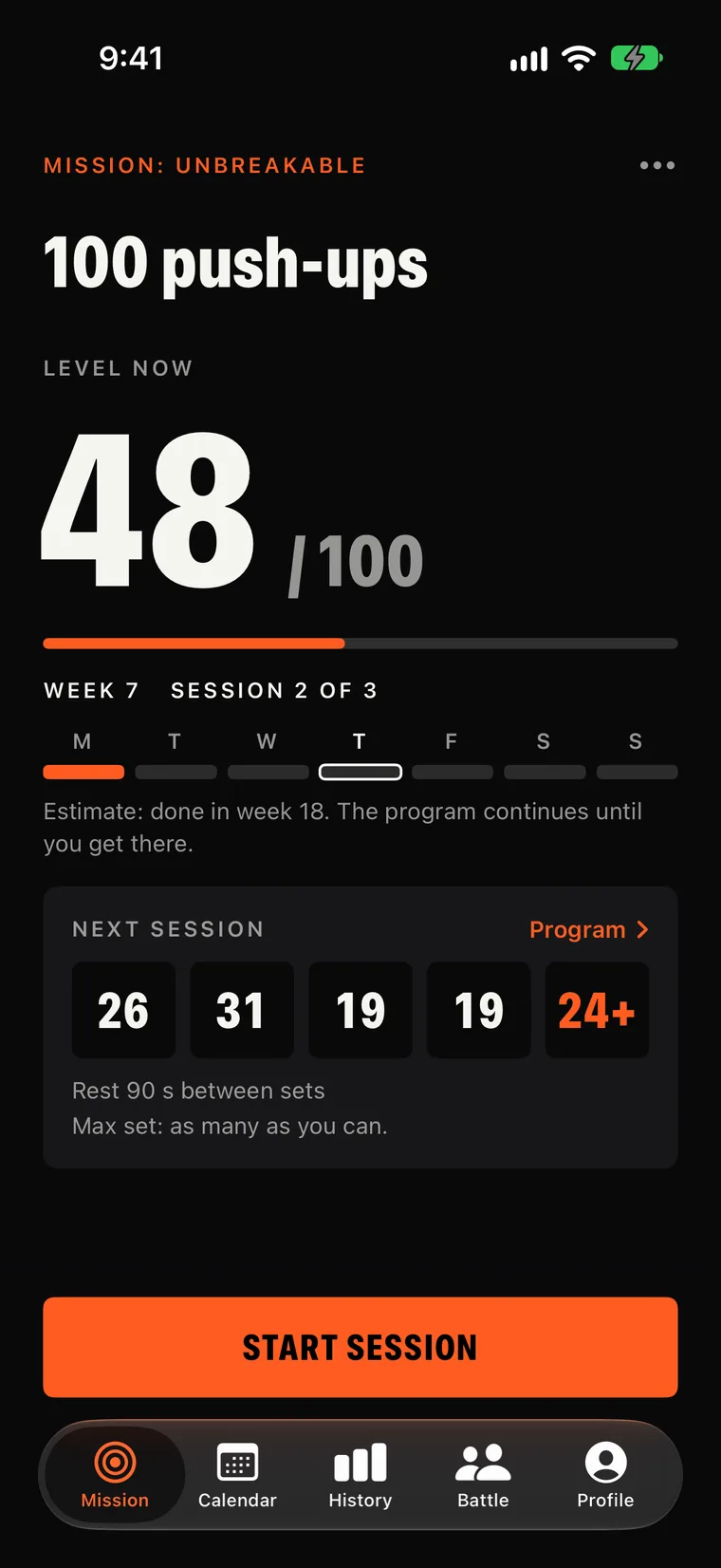
Home: the mission 100 push-ups, level 48 of 100 and the five sets of the next session
Home
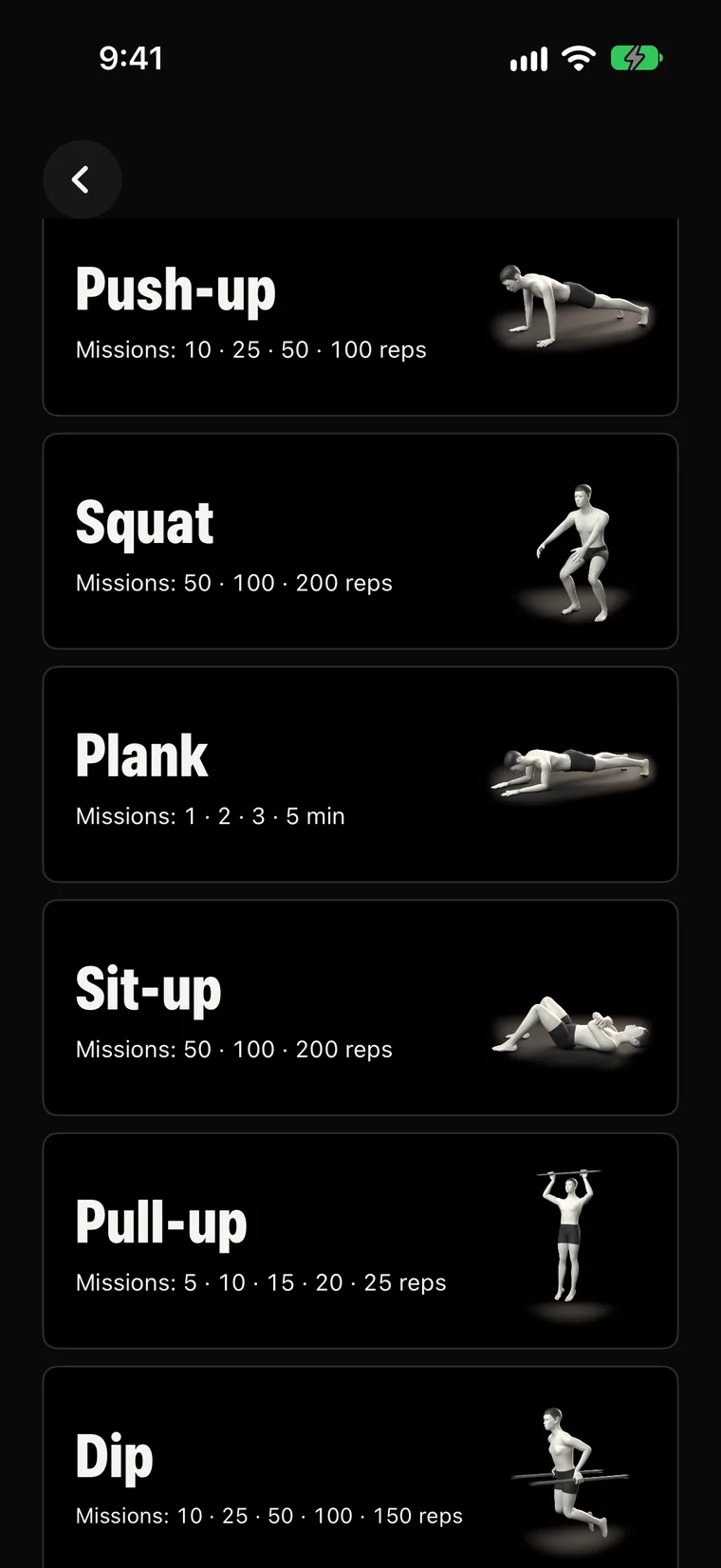
The list of disciplines: push-up, squat, plank, sit-up, pull-up and dip with their missions
Disciplines and missions
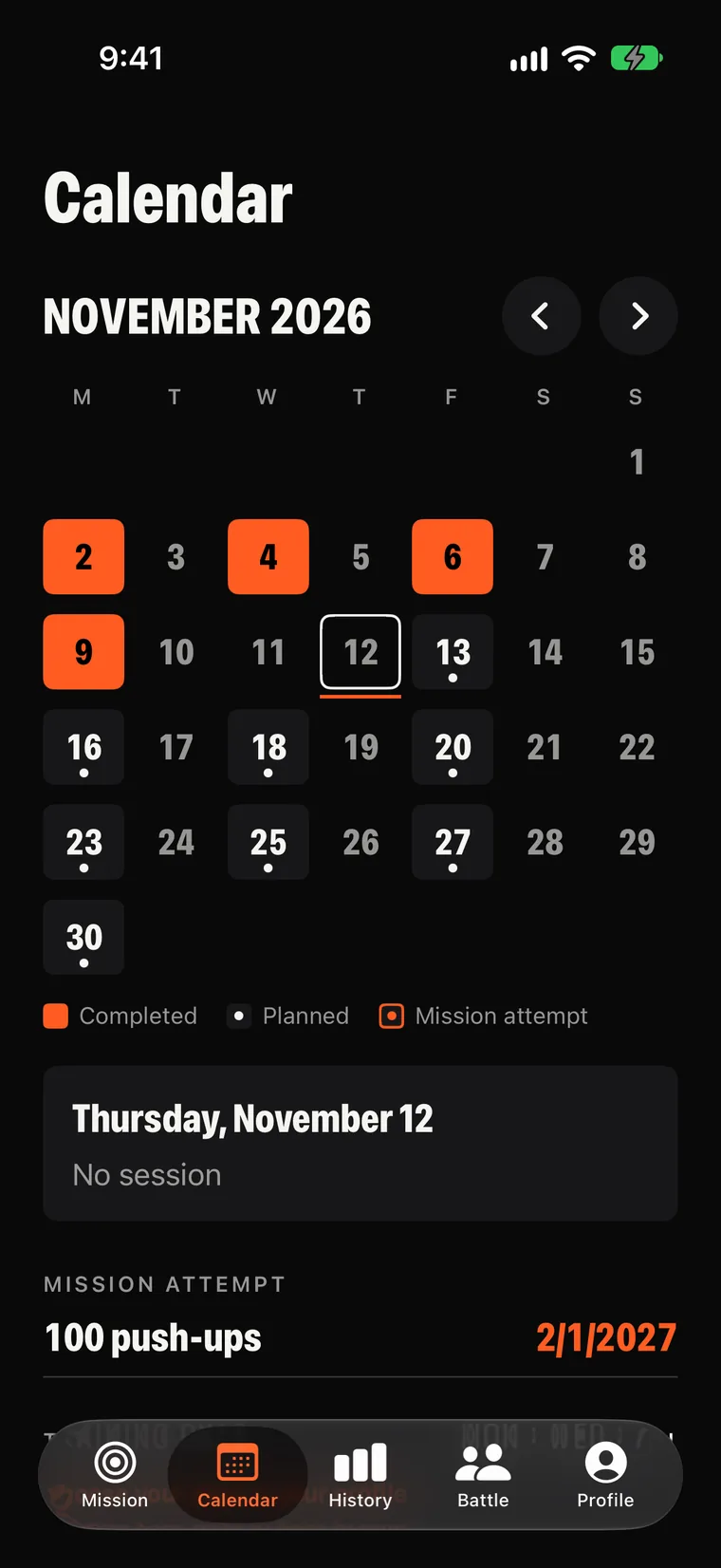
Calendar: completed and planned sessions and the day of the mission attempt
Calendar
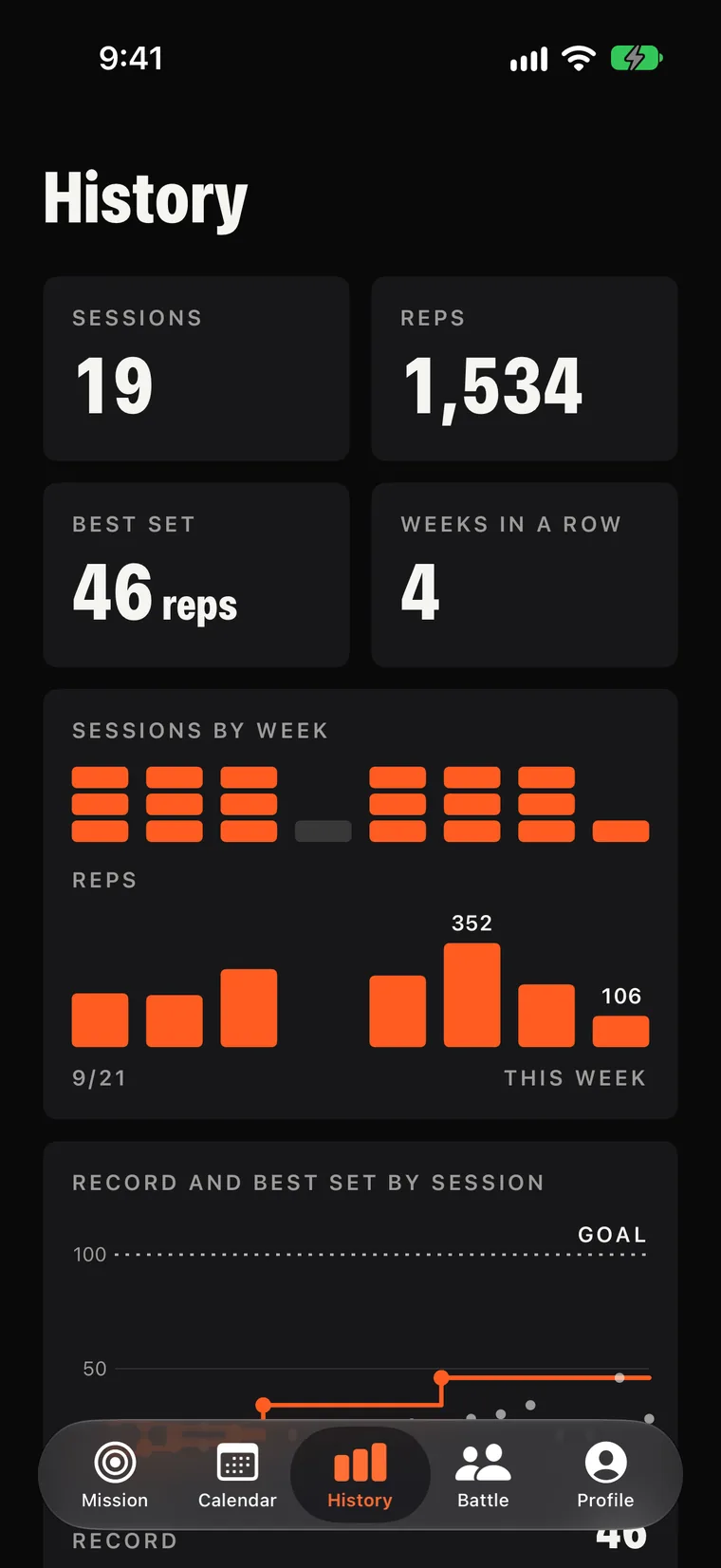
History: sessions, reps, best set and weeks in a row
History
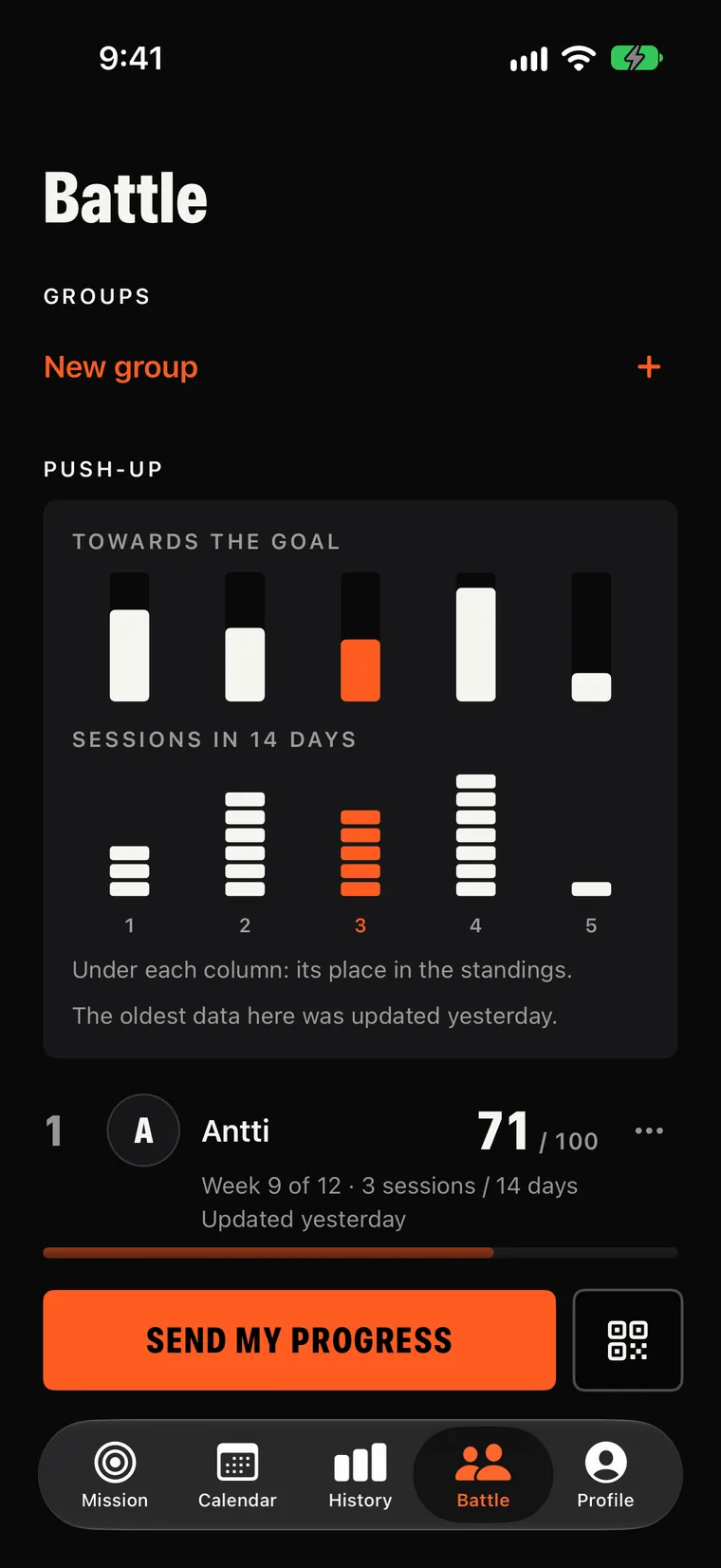
Battle: group members' progress towards the goal and sessions in the last 14 days
Battle
FAQ

Frequently asked questions

Can an iPhone count push-ups with the camera?

Yes. MISSION: Unbreakable counts push-ups with the iPhone camera when the phone leans on the floor and your arms and shoulders are in the picture. Counting works from the side, the front and at an angle. Only full reps count: your upper arms need to reach about level.

Which movements does the camera count?

Push-ups, squats, pull-ups, dips and sit-ups. Sit-ups are counted only when filmed from the side. A clock times the plank. The easier forms (knee push-up, negative pull-up and bench dip) and running are entered by hand.

Does the app record video of me?

No. The picture is processed on the phone as it is taken and is never saved or sent anywhere. Rep counting also works without a network connection.

Why did not all my reps count?

The most common reasons are a partial rep, a limb out of the picture, backlight, or a set that started from the bottom position. The screen tells you the reason, for example "Go lower" or "Step back until your ankles show". You can fix the number with + and −.

How far away should the phone be?

Far enough that the counted limbs stay in the picture through the whole movement. For squats your whole body must show, down to the ankles. For pull-ups and dips the app suggests a couple of meters, and for sit-ups about two meters to your side.

Can I train without the camera?

Yes. Choose No camera in the top corner of the workout screen, and a 3D figure shows the movement while you enter the reps with + and −. You can switch in the middle of a set.

Does the counter work in a gym with other people around?

The app picks the person who fills most of the frame and stays with them. If someone walks between you and the camera, counting can pause for a moment. Place the phone so that you are the person closest to it.

Does camera counting cost anything?

No. Camera counting is part of the free version. Pro adds technique feedback on depth and tempo and other features, but counting reps does not need it.

Sources

How the app works was checked from its source code and the developer's measurement notes on 29 November 2026. General facts about body pose detection come from Apple's developer pages.

Contact

Tell us what you need.

A website for your business, a review of your current site or an app idea. We will reply soon.

Your message comes straight to us.